Introduction
Scopes allow you to define the specific re-usable subsets of activities that are relevant to your analysis and reporting. ActivityExchange offers a variety of ways to report on those subsets.
What is a Scope?
Scopes in AE can be considered a search query that defines the subset of activities that is relevant to your analysis or reporting. Each Scope is a combination of a Pivot Tree and a Filter.
Scoping In
There are many times when you only want to see activities from a certain location or of a particular type. Select one or more folders in a Pivot Tree and then click "Scope to this selection" to zoom in on only the activities within your selection.
In the following example, we want to scope in on just the activities relevant to room "SW5" in the "Hackett Building":
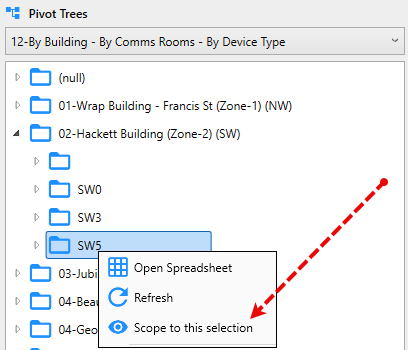
Note: if you'd like to reset the scope back to all activities, click the Reset button located in the top-right of the dashboard:

Save the Scope
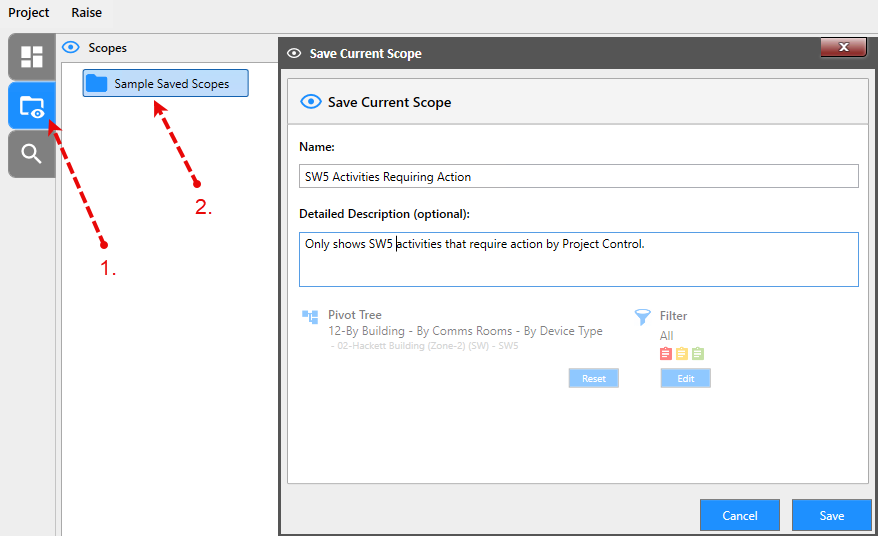
Once you have a Scope that you are happy with and would like to consistently and reliably use (which also includes the Filter) you can:
- Navigate to the "Scopes and Reports" tab
- Right-click on a folder and select "Save Current Scope".
Reporting to Dashboards
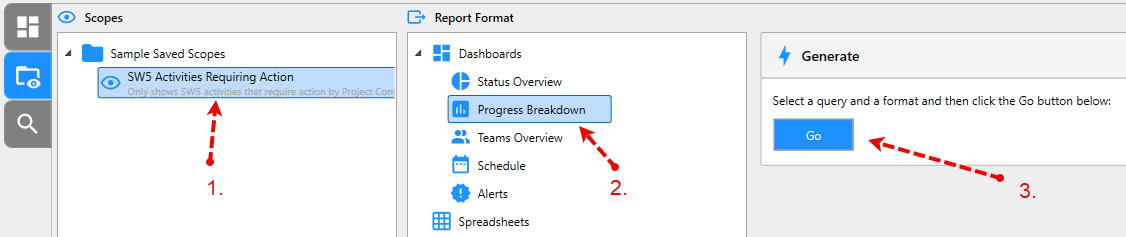
Following from the step above, to use your new Scope and generate a dashboard, simply:
- Select your Scope
- Select any of the available Dashboards from the "Report Format" panel
- Click "Go"
Reporting to Spreadsheets
To open a Scope in a spreadsheet, simply right-click your Scope and select "Open Spreadsheet".
This is handy but what if you always wanted to see the same columns of data in the spreadsheet every time we run the report?
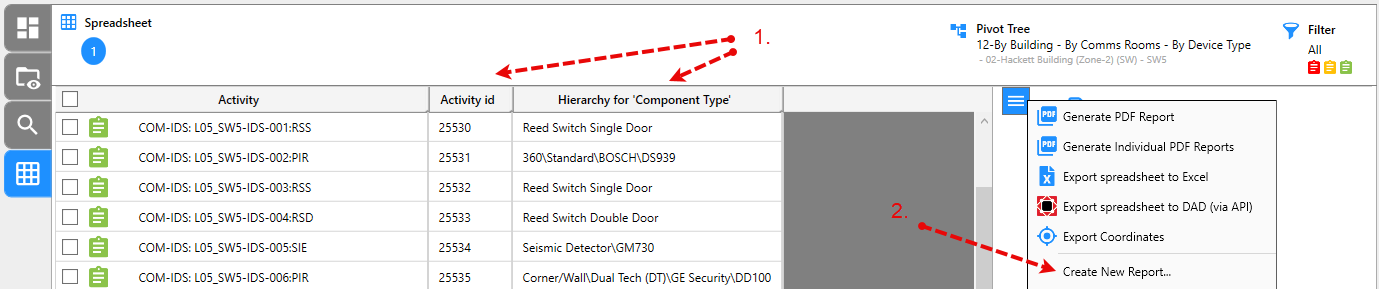
To do this you will need to define what columns you want to see and then save it as a new Report:
- Add in the columns to your spreadsheet
- From the menu select "Create New Report"
Once this is complete you will be able to re-use this spreadsheet by performing the following steps:
