Introduction
This function will create a new DAD component in the DAD database and link its corresponding activity. e.g. During site audits you might discover equipment that does not exist yet in your digital model. You can collect information about this equipment by having field personnel raise customised adhoc activities on their mobile devices. This export option enables you to create new components in the digital model to represent this equipment and allow your design team to action further.
Opening the Export to DAD Window
The "Export to DAD" window is accessed via the spreadsheet.
Create a spreadsheet of the activities you wish to perform an export function.
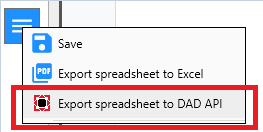
Select your activities and then open the Export to DAD window via the following command in the spreadsheet menu:
Action
In the Actions panel, select "Generate an activity PDF and append in to DAD object 'Work History'". If you have selected activities that are not linked to a DAD object you will be presented with the option to create a component in DAD for that activity. The AE export window BEFORE the export has been run is below. Note: This option will not be visible if every selected activity is already linked to an object.
Note: It is important that you select which layer that the components will be selected in.
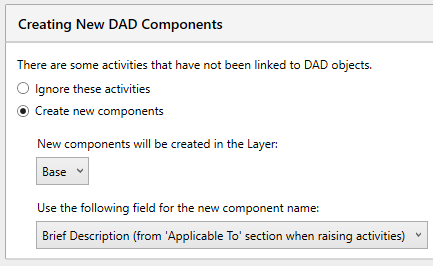
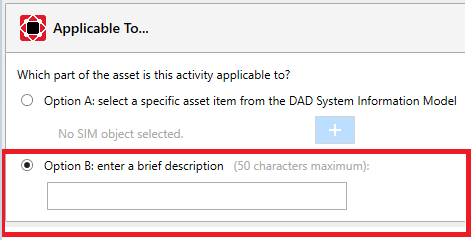
The name of each new component will be the value supplied previously by your users in the "Applicable To" field when raising each activity.
Export Results
AFTER the export has been run you should see something similar to the image below. You can see the green tick to indicate that the component has been created succesfully. There is also a message to indicate that this activity has been linked to the new component.

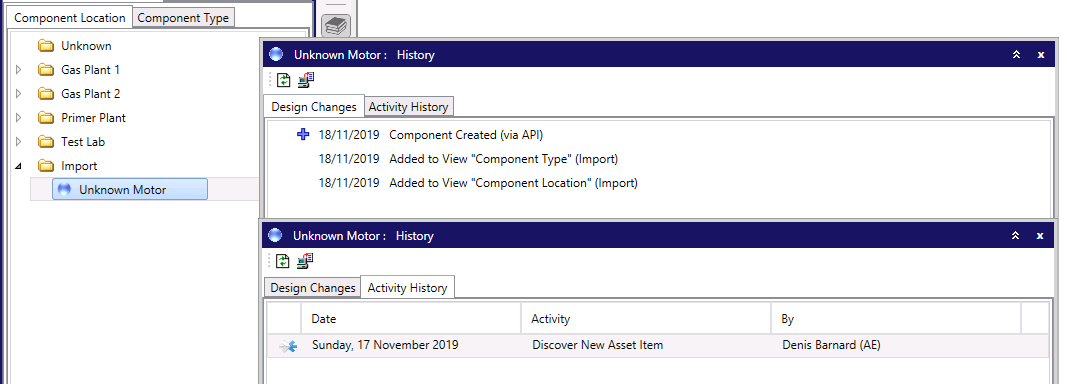
If you open the DAD application you can see the results in the "Import" folder as shown below. If you open the history for the component there is a tab called "Activity History". Double click any entry here will open the attached PDF.
Once you have closed the Export window you can open the activity and see the link to the new DAD component.
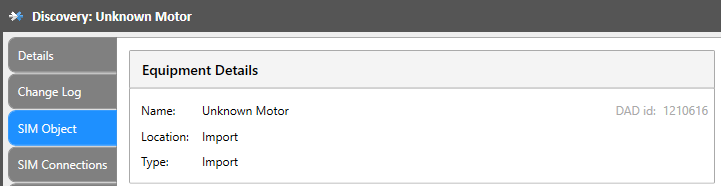
Renaming the component in DAD will automatically be reflected in AE (can be up to a 24 hour delay).