Introduction
This function will copy data stored in an AE attribute into a linked DAD attribute in the DAD database.
- A populated attribute in AE.
- Push data into DAD.
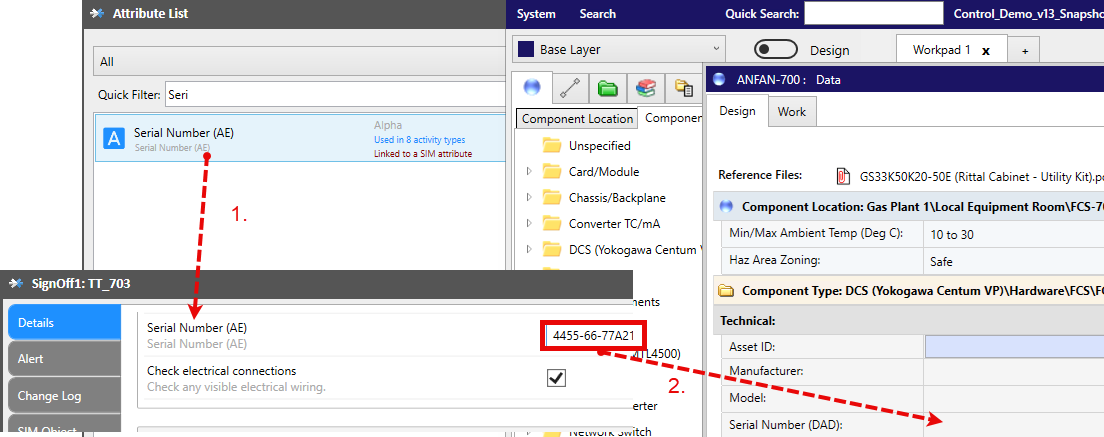
Configuring an Attribute for Export
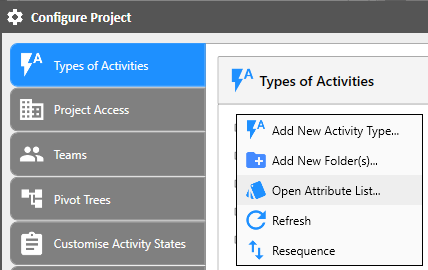
If you wish to export attribute data from AE to DAD (e.g. you have used activities (via mobile devices) to go out and in to the field and collect information regarding your asset items) then you will need to point each AE attribute at its respective DAD attribute that you wish to populate. In your "Configure Project" window, navigate to the "Types of Activities" tab and use the menu to open the "Attribute List".
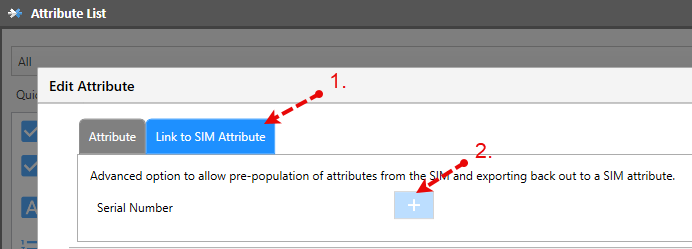
From the "Attribute List", select an attribute that you wish to export to DAD and use the menu to "Edit" the attribute.
- Click the "Link to DAD Attribute" tab.
- Click the "Add" button.
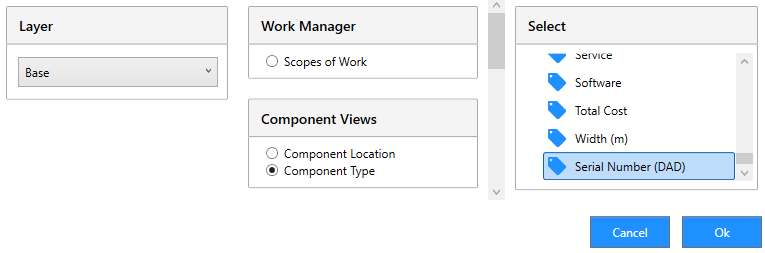
Note: this option will only become available when the Export feature has been enabled. Select the target DAD attribute (he attribute you wish to be populated) and click Ok.
Opening the Export to DAD Window
The "Export to DAD" window is accessed via the spreadsheet.
Create a spreadsheet of the activities you wish to perform an export function.
You will need to include the relevant attribute columns in your spreadsheet before proceeding.
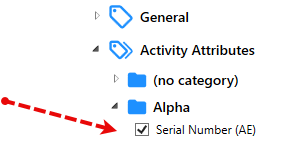

Select your activities and then open the Export to DAD window via the following command in the spreadsheet menu:
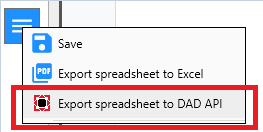
Action
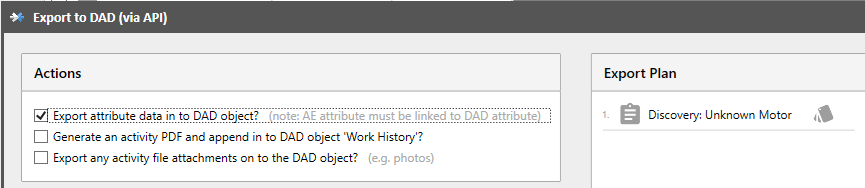
In the Actions panel, select "Export attribute data". If you don't see this option it is because you haven't selected a valid attribute in the spreadsheet (see above). The AE export window BEFORE the export has been run is below.
Export Results
AFTER the export has been run you should see something similar to the image below. You can see the green icon to indicate that the data was copied across succesfully. You will also see a message informing that this activity has found its linked component in the digital model.

If you now refresh the object(s) in the DAD application you will see the updated data.