Introduction
This function will generate and append an activity PDF on to linked DAD objects in the DAD database.
Opening the Export to DAD Window
The "Export to DAD" window is accessed via the spreadsheet.
Create a spreadsheet of the activities you wish to perform an export function.
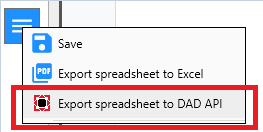
Select your activities and then open the Export to DAD window via the following command in the spreadsheet menu:
Action
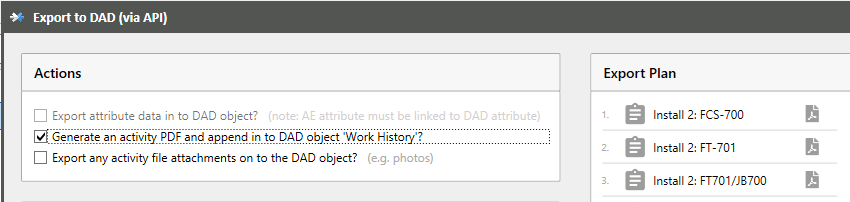
In the Actions panel, select "Generate an activity PDF and append in to DAD object 'Work History'".
The AE export window BEFORE the export has been run is below.
Export Results
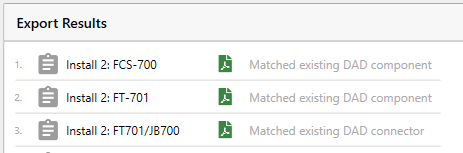
AFTER the export has been run you should see something similar to the image below.
You can see the green icon to indicate that the PDF was attached succesfully.
You will also see a message informing that this activity has found its linked component in the digital model.
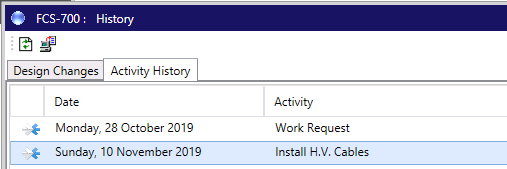
 If you open the DAD application you can see the attached PDF by opening the objects "History" window and navigating to the "Activity History" tab.