Introduction
AE supports the following types of barcodes: UPC-A, UPC-E, EAN-8, EAN-13, Code 39, Code 93, Code 128, ITF, Codabar, MSI, RSS-14 (all variants), QR Code, Data Matrix, Aztec and PDF-417
Example 1
Barcode type: QR Code
Barcode value: http://www.dad.net.au

Example 2
Barcode type: EAN-13
Barcode value: 8901072002478

It is recommended that the barcode images themselves are not stored in DAD, just the barcode value itself. This should be stored in a “Barcode” string attribute on each object. By storing the value itself, any search with DAD or AE will yield this object as a result.
DAD and AE do not generate barcode images for printing. We recommend the use of online tools, barcode printers and/or 3rd party suppliers.
Barcode Usage Scenario A (Pre-Installation)
-
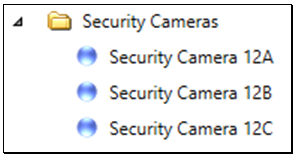
Equipment/cable exists in the digital model
-
Update each piece of equipment/cable in DAD by populating an attribute with its barcode value

-
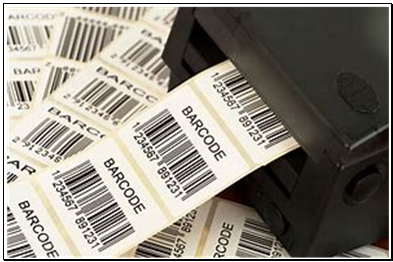
Use these values to generate your barcode labels (via printer/3rd party supplier)
-
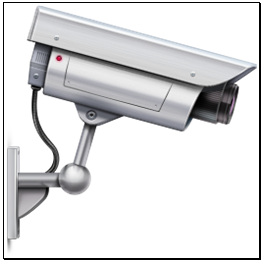
Apply them to physical equipment/cables before installation
-
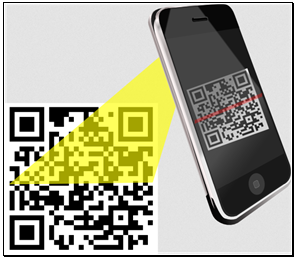
Technician uses ActivityExchange (Mobile Edition) to scan barcodes and bring up activities relevant to the respective equipment/cable
e.g. Install: Security Camera 12A.
Technician fills out the activity, attaches a photo and submits as completed.
Barcode Usage Scenario B (Mid/Post Installation)
-
Technician locates physical equipment
-
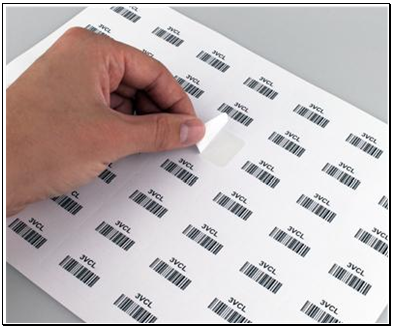
Technician removes a barcode label from a file of unallocated barcodes and affixes it to the equipment/cable.
-
Technician scans the barcode and records it against the equipment/cable for permanent assignment.
-
Once approved, PC uploads those values from AE into the DAD Barcode attribute for permanent record/utility.
Barcode Usage Scenario C (Commissioning, Operations & Maintenance)
-
Technician approaches physical equipment
-
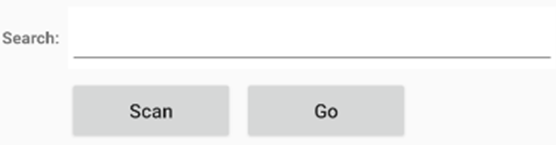
Technician opens the Search on the mobile device and selects “Scan”:

-
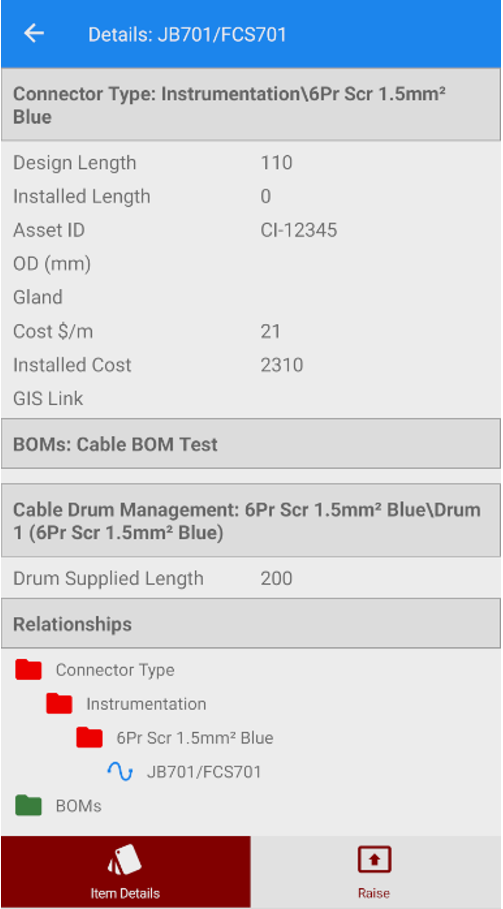
Technician scans the barcode and can now access all relevant activities *AND* data for that piece of equipment/cable.
-
The technician can now raise a new activity by using the “Raise” button in the bottom right of the object’s details screen.