Getting Started
To get started, open the ActivityExchange (Mobile Edition) app where you have access to your network.
- Be connected to your network
- Sign in as per normal
- Select your Team and load the User Dashboard
Preparing to go offline
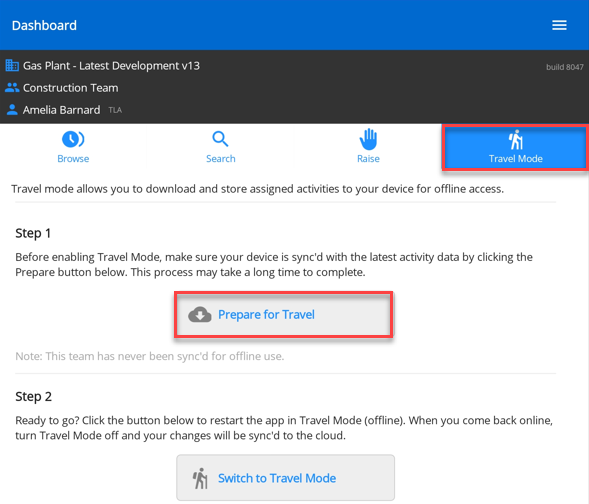
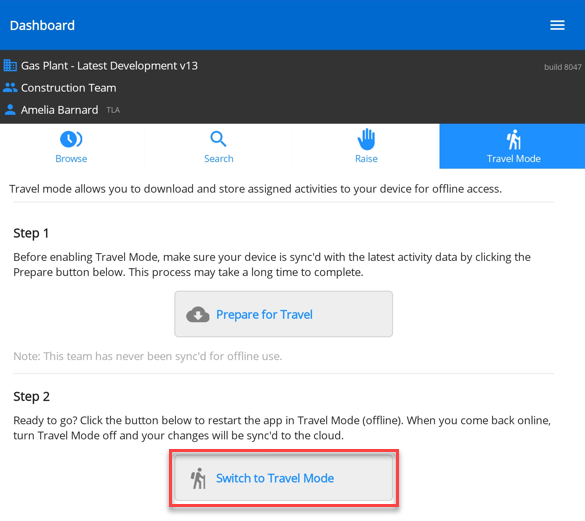
Once you are looking at your dashboard it is time to prepare to go offline. Select the 'Travel Mode' tile, and commence Step 1 and select 'Prepare for travel'.
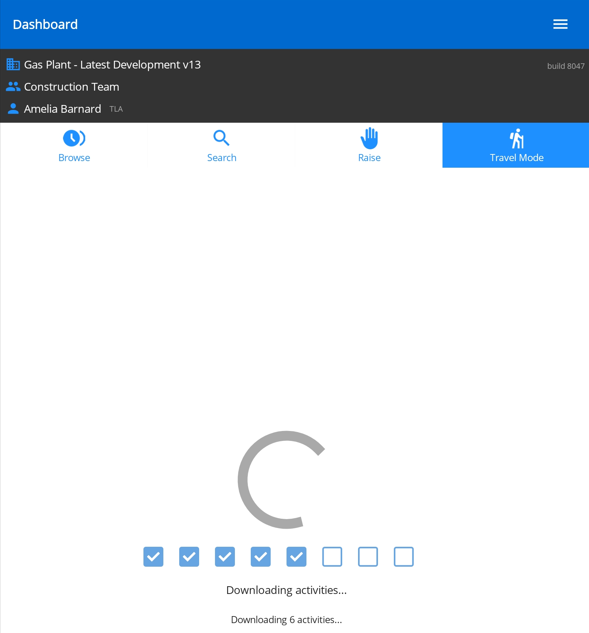
This process will start to download all assigned activities to your device. This will enable you to access them when offline. Your screen will have a pop up progress bar, informing you of it's progress.
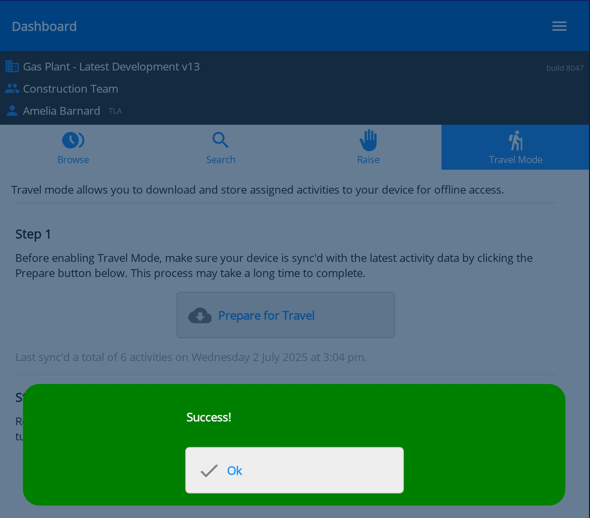
Once all activities are downloaded successfully, a message will pop-up confirming status.
Back at the Dashboard page, proceed to Step 2 - 'Switch to Travel Mode':
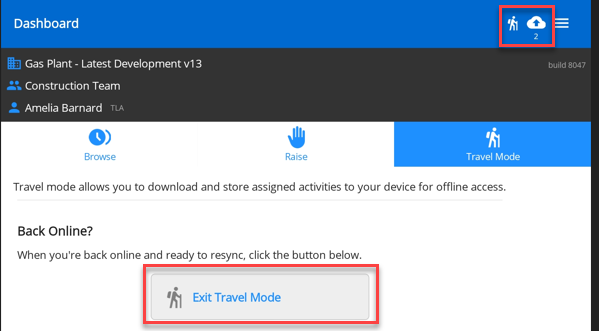
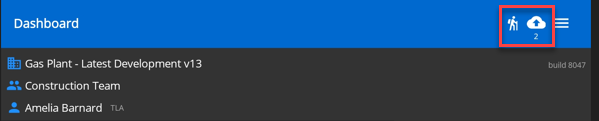
The app will return you to 'Team selection' page and the travel icon will now be visible.
Completed activities are stored on your device until you are back online. A cloud icon will appear next to the menu tab indicating that there is something to be uploaded for this activity.
Getting back online
When you have connectivity restored, refresh your dashboard, select 'Travel Mode' tile and click the "Exit Travel Mode". The completed activities will be uploaded..